How to check if your website is secure and trustworthy
Discover how to determine if a website is safe, interpret HTTPS, check the URL, and use tools for safer browsing.
Listen to the article
Learn how to evaluate a website before entering data, making a purchase, or accessing an account. HTTPS helps, but security also depends on the URL, content, and behavior of the page.
Quick response
To determine if a website is safe, check if the address is correct, verify if the connection uses HTTPS, and pay attention to browser warnings. Then, consult the domain using tools like VirusTotal, Google Safe Browsing, or Trend Micro Site Safety. Do not provide passwords, banking information, or documents just because a lock icon appears: HTTPS protects communication but does not prove that the page belongs to the company it claims to represent. If in doubt, close the tab, access the address by typing the URL directly, and confirm the business's identity through an official channel.
Summary
- HTTPS protects the connection, but does not alone confirm the legitimacy of the site.
- Subtle errors in the URL, urgent offers, and unusual data requests deserve attention.
- Reputation tools help identify malware, phishing, and other known risks.
- Unique passwords, two-factor authentication, and an updated browser reduce the impact of scams.
What is a secure website?
What is a secure website?
A secure website is one that offers a protected connection, reduces known risks, and handles visitor data responsibly. This involves technical aspects, such as encryption and malware protection, and trust aspects, such as a coherent URL, clear company information, and an experience that does not attempt to mislead the user.
In practice, security is not a single seal. A page can use HTTPS and still be a copy of a store, bank, or well-known service. Similarly, a legitimate site may experience a temporary failure without being created to perpetrate scams. Visitors need to combine signals before deciding whether to fill out a form, download a file, or make a payment.
For small and medium-sized businesses, this distinction is especially important. The website often serves as a hub for contact, catalog, quotes, scheduling, and customer information. For small and medium-sized businesses, digital trust is part of the customer experience: a clear address, updated pages, accessible privacy policy, and adequate protection help visitors make safer decisions.
How can you tell if a website is secure?
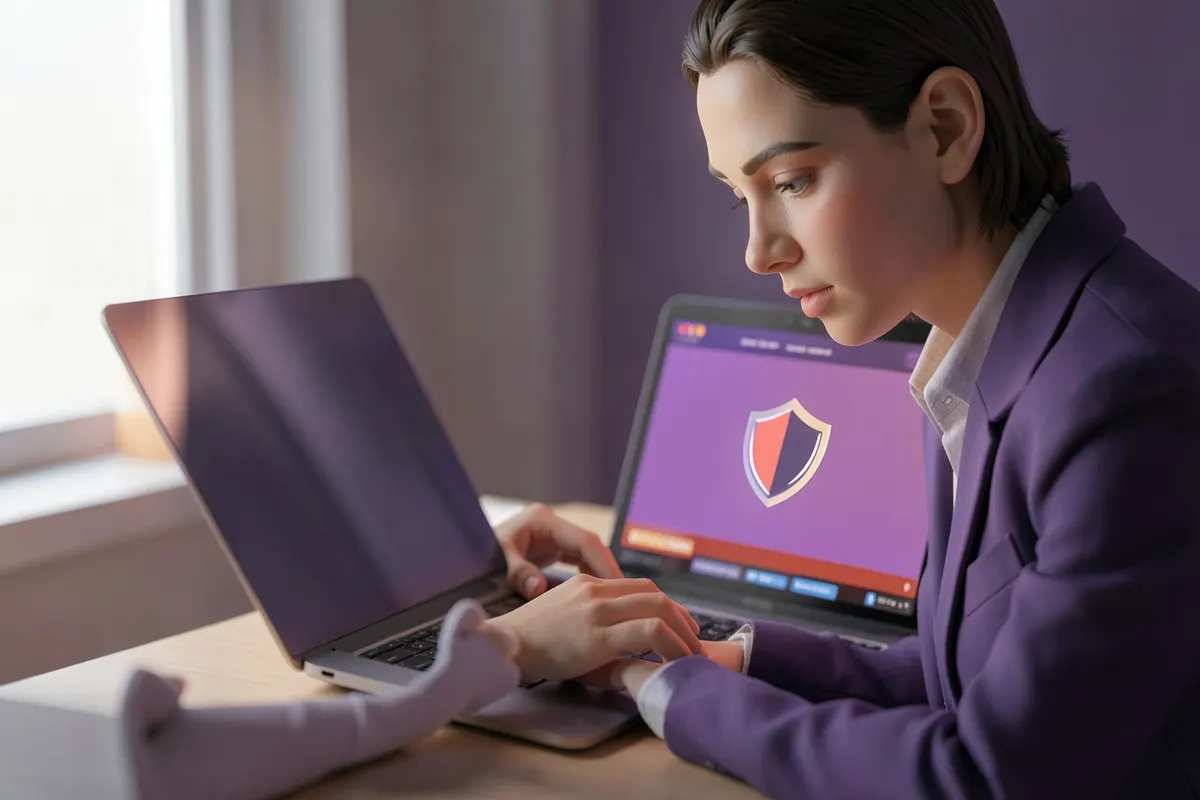
Start with the URL, confirm HTTPS, watch for browser alerts, and research the address using reputation tools. If there are any inconsistencies, do not submit data until you confirm the site's identity through an independent channel.
Is a website secure if it has HTTPS?
Not necessarily. HTTPS indicates that the communication between the browser and the server is encrypted, making it harder to intercept information during access. It is especially important when there is a login, password, purchase, or submission of personal data. CERT.br recommends using secure connections when access involves providing a password.
Still, HTTPS does not answer the main question: who controls that page? A fake site can also have a certificate and display the padlock. Therefore, the browser's security icon should be interpreted as a sign of a protected connection, not as a certificate of honesty. Serasa explains that the padlock indicates active SSL, but does not guarantee that the site is legitimate on its own.
Open the connection details in the browser if you want to confirm the protocol and certificate. Chrome informs that connections with HTTPS are more secure than those without HTTPS and offers a setting to try to use secure connections whenever possible. However, this does not eliminate the need to check the domain and content.
The answer to the question of whether a website with HTTPS is secure is: the connection is protected against certain types of interception, but the legitimacy of the page still needs to be verified. Avoid entering information on addresses that start only with HTTP, especially when the form requests a password or financial data.
How can I check if this page is secure?
Conduct a layered check. First, read the full address in the browser's address bar, without relying solely on the logo or text displayed within the page. Look for letter swaps, extra words, unexpected domains, strange extensions, or subdomains that try to imitate a well-known company. BV's security guide warns that cloned pages often alter small details in the URL.
Next, check if the browser displayed an alert. Google Chrome defaults to phishing and malware detection and may show the red warning 'Dangerous site' when it identifies risks associated with phishing, malware, unwanted software, or social engineering. If this warning appears, do not proceed to test the form or download the file.
Also, observe the page's behavior. Repeated redirects, pop-ups that block exit, pressure to pay immediately, gross errors, promises inconsistent with the market, and requests for unnecessary data form a concerning set. A serious company should explain what it collects, why it collects it, and how the visitor can seek assistance.
Finally, validate the context through an independent path. Type the address directly into the browser, as CERT.br advises, instead of opening a link received via message. Compare official channels, check the privacy policy, and research the domain's reputation. Do not reuse a password for testing, and never submit real data just to find out if the page works.
To carry out this screening, start with the address, confirm the protocol, read the alerts, examine the content, consult a reputation tool, and only then decide if it is worth filling in data. If the page asks for a card, password, or document without explaining the purpose, stop the process and look for the business through another channel.
- Read the full URL and compare the domain with the official address of the company.
- Confirm if the page uses HTTPS and open the connection details in the browser.
- Watch for alerts, redirects, pop-ups, data requests, and unexpected downloads.
- Type the address directly into the browser to avoid suspicious links received via message.
- Check the domain in a reputation tool before providing sensitive information.
- Confirm the business's identity through an independent channel before completing the action.
Have a professional website working for you 24/7
Let the Artificial Intelligence of NaInter.net create the perfect showcase for your business to attract customers every day.
What tools should be used to verify the security of a website?
What tools should be used to verify the security of a website?
Verification tools are useful to complement manual analysis. They consult reputation databases and technical signals, but a positive result does not replace reading the URL, the context, and the requests made by the page. Use more than one source when the decision involves payment, login, or customer data.
VirusTotal
VirusTotal allows you to check an address and see if it has been associated with malware, spyware, trojans, and other known threats. Bidweb Security IT describes the service as one of the most powerful tools available for this purpose and highlights that it provides a detailed report on the website's security.
To use it, copy the URL without reopening the suspicious page, access the service, paste the address, and examine the report. Check for any detections, which part of the address was analyzed, and whether the result seems consistent. An isolated detection calls for investigation, while multiple flags make it wise to refrain from proceeding.
Avoid including links in the report that contain tokens, recovery codes, or private information. The goal is to assess the public domain, not to expose data that should remain restricted.
Google Safe Browsing
Google Safe Browsing maintains a list of sites that may pose a risk due to malware, phishing, abusive extensions, malicious ads, and social engineering attacks. The documentation itself describes phishing as a situation where the page requests personal or financial information under false pretenses.
In addition to the browser's automatic warnings, you can manually check an address on the Safe Browsing diagnostic page. Bidweb Security IT states that you only need to enter the URL to check the website's security. This check is useful when a link arrives via email, social media, or messaging app and you are not ready to open it yet.
Chrome checks visited sites, installed extensions, and downloaded files against lists of unsafe content in standard protection mode. Safe Browsing claims to protect over five billion devices daily by displaying warnings against dangerous sites or downloads. However, the absence of an alert only means that no known identification occurred at that moment, not an absolute guarantee of legitimacy.
Trend Micro Site Safety
Trend Micro Site Safety assesses the reliability of an address using artificial intelligence, machine learning, and human analysis, according to Bidweb Security IT. The tool can also provide recommendations on appropriate measures in the face of potential threats.
Paste the domain into the tool and read the rating, justification, and guidance provided. Use the result as another decision-making element, especially when the page seems new, has an unusual URL, or requests a download. If the recommendation is to avoid the site, heed the warning and seek the service through a confirmed address.
No tool sees all scams the moment they arise. The best practice is to combine technical reputation with verification of the company, the address, and the purpose of the form.

What signs indicate that a website may not be safe?
What signs indicate that a website may not be safe?
An isolated sign does not prove that fraud has occurred, but multiple signs together should halt navigation. The page may be compromised, outdated, or trying to capture information. The safest behavior is to refrain from insisting and to confirm the source through another means.
Check the URL
Read the domain letter by letter, especially after clicking on an ad or shared link. Scammers may register addresses similar to those of well-known brands, using subtle errors, swapped characters, additional words, or unexpected extensions. The visual appearance of the page does not correct a suspicious URL.
Also be wary of shortened addresses when you do not know the source. Instead of opening it directly, look for the official address by typing the URL into the browser. CERT.br recommends this caution because direct typing reduces reliance on links that may have been altered or sent by impostors.
Check if the address matches the purpose. A page that presents itself as a financial institution, for example, but uses a domain with no clear relation to the organization deserves investigation. The same applies to a payment request that leads to a different address than the one used for institutional contact.
Check the website's security
Look for HTTPS, but don't stop at the padlock. Check if the browser shows a valid certificate, if there are no security alerts, and if the page elements load coherently. Forms that ask for passwords, authentication codes, credit card information, or documents should explain why that information is necessary.
Be wary of artificial urgency. Messages about immediate blocking, unexpected prizes, discounts that expire while you read, or charges to release an order are common social engineering tactics. Spelling errors, copied texts, pages without a privacy policy, and lack of verifiable channels also reduce trust.
Google maintains alert mechanisms for phishing, malware, malicious ads, and social engineering attacks. If the browser indicates danger, do not disable protection to continue. Close the page, refresh the browser, and look for the company through a known channel.
For businesses, the lesson is equally practical: security needs to be perceived without creating obstacles. A professional website should use a secure connection, present coherent information, protect forms, and clearly state how data will be handled. This reduces customer doubts and helps preserve the company's reputation.
- Compare the domain with the official address you already know.
- Identify typos, strange extensions, and unexpected redirects.
- Stop browsing upon seeing a red alert or incompatible information request.
- Confirm the company through an independent channel before resuming access.

How to protect your information while browsing?
How to protect your information while browsing?
Website verification is just one part of protection. Even when the page looks legitimate, reduce the amount of data shared, keep the device updated, and use extra layers of authentication. For a small business, this care applies to email accounts, social media, payment systems, and administrative tools.
Use strong passwords
Create long and hard-to-guess passwords by combining words or characters in a way that does not reveal personal information. CERT.br recommends not reusing passwords across accounts. This separation is crucial: if a password is exposed on a compromised site, it does not automatically unlock email, business panels, or other important accounts.
Do not save passwords on unknown pages and never send your password via message to resolve a supposed support issue. Prefer to access the service by typing the address directly and change the credential if you provided it on a suspicious page. For teams, each person should have their own access, avoiding sharing an administrative password.
The browser should also remain updated. CERT.br recommends keeping the browser with all updates applied, as fixes help reduce vulnerabilities exploited by malicious pages. Updating does not replace attention but closes doors that criminals may try to use.
Enable two-step authentication
Two-step authentication adds a confirmation beyond the password. If someone discovers the credential, they will still encounter an additional barrier before entering the account. CERT.br recommends enabling this feature whenever available.
Activate the feature in the official account settings, never through a link received unexpectedly. Store recovery codes in a secure location and review authorized devices. In a company, apply protection first to accounts that control email, payments, customer service, and website access.
By combining a unique password, two-step authentication, an updated browser, and attention to the URL, you reduce the chance of turning a click into an incident. When a page seems suspicious, do not try to outsmart it in a hurry: stop access, confirm the address, and resume only after understanding who is requesting your data.
Digital trust is part of the customer journey. Treat each information request as a conscious decision, not as an automatic step in browsing.
- Create a unique and hard-to-guess password for each important account.
- Immediately change the password if it has been provided on a suspicious page.
- Update the browser and keep security patches applied.
- Enable two-factor authentication on accounts that offer this feature.
- Review authorized devices and store recovery codes in a secure location.
- Access an account or enter a password. → Confirm HTTPS, type the address directly, and use a unique password.
- Purchase or pay on an unknown page. → Check the URL, consult the domain, and verify the company before proceeding.
- Open a link received via message. → Do not use the link automatically; compare the address with the official channel.
- Protect your business accounts. → Enable two-factor authentication and keep your browser updated.